

How do you build a kanban board in Confluence without a Jira admin?
Task Boards for Confluence turns any Confluence page into a kanban board. Add the macro, create your lists, then add cards with descriptions, due dates, assignees and comments, and drag them from list to list. No Jira admin or workflow setup is needed, and the free trial starts when you install from the Marketplace.
- A board lives on any Confluence page, so your work and your documentation stay in one place
- Lists and cards carry descriptions, due dates, assignees and comments
- Install from the Marketplace and the free trial starts automatically
Marketing tracks campaigns. Legal tracks reviews. HR tracks onboarding. Most of that work already lives in Confluence, and almost none of it fits a Jira project. Today we are launching Task Boards for Confluence, a Cloud app that adds a kanban board in Confluence to any page. You do not need Jira, and you do not need a Jira admin to set up a board.
Can You Build a Kanban Board in Confluence Without a Jira Admin?
You can now. Until now, every option had a catch for teams outside engineering.
Atlassian's own guide to embed a Jira kanban board in Confluence assumes you already have a Jira board to show, an application link between Jira and Confluence, and a registered gadget. In many companies, Jira boards belong to the Jira admin. A quick board for one team turns into a request, a queue and a workflow to configure.
Native Confluence tasks do not fill the gap either. A task is either complete or incomplete. That works for a checkbox. It does not work for a piece of work that moves from draft to review to approved to published.
So teams fall back on tables nobody updates, spreadsheets that drift away from the page they belong to, or yet another tool that sits outside Confluence.
What Is Task Boards for Confluence?
A kanban board in Confluence is a set of lists on a Confluence page where each card is a task that moves from one list to the next as the work progresses. Task Boards for Confluence is the Cloud app that adds this board to any page.
You add it to a page with a macro, and it runs inside Confluence Cloud on its own, so the board sits right next to the work it tracks.
Here is what you get:
- Unlimited boards on your Confluence pages, added with a macro, which means every campaign, review flow or project can get its own board
- Lists you name for your own flow, and cards you drag between them
- Cards with a description, a due date, assignees and comments
- A link to any card, so you can send it to a teammate
- Archive and restore, so finished work leaves the board without disappearing
- Search and filter by assignee, so you can see what one person is carrying
- The option to move lists and cards between boards on the same page, so you can reorganize a page without rebuilding its boards
How to Create a Kanban Board in Confluence in 3 Steps
Adding a board takes three steps. Our Getting started guide covers each step in detail.
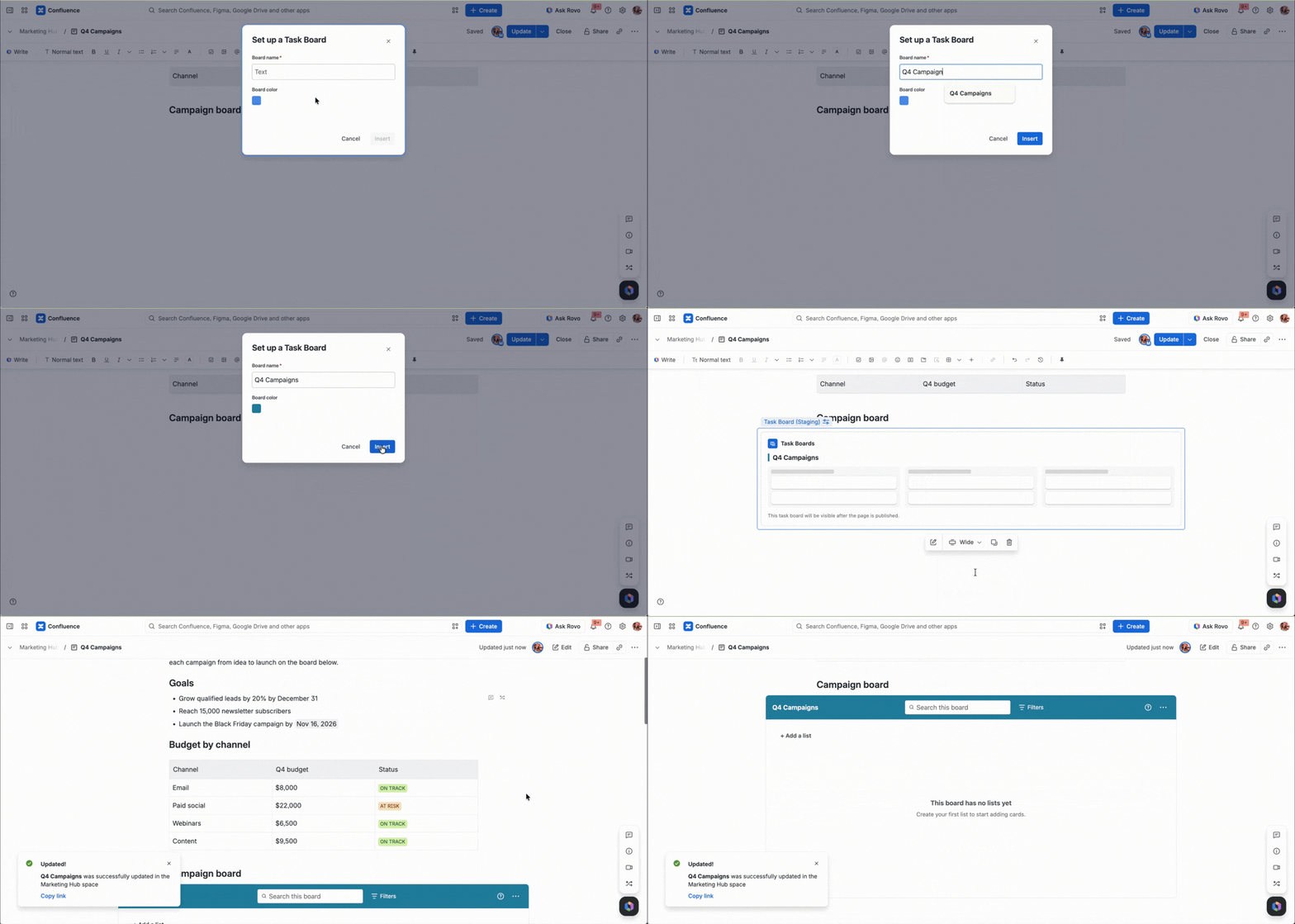
Step 1. Insert the macro. Edit the page you want the board on and click the + sign in the insert menu. Search for "Task Boards" and select the app. Give the board a name, pick a color if you like, and click Insert. Switch to Go wide mode so the lists have room, then publish the page.
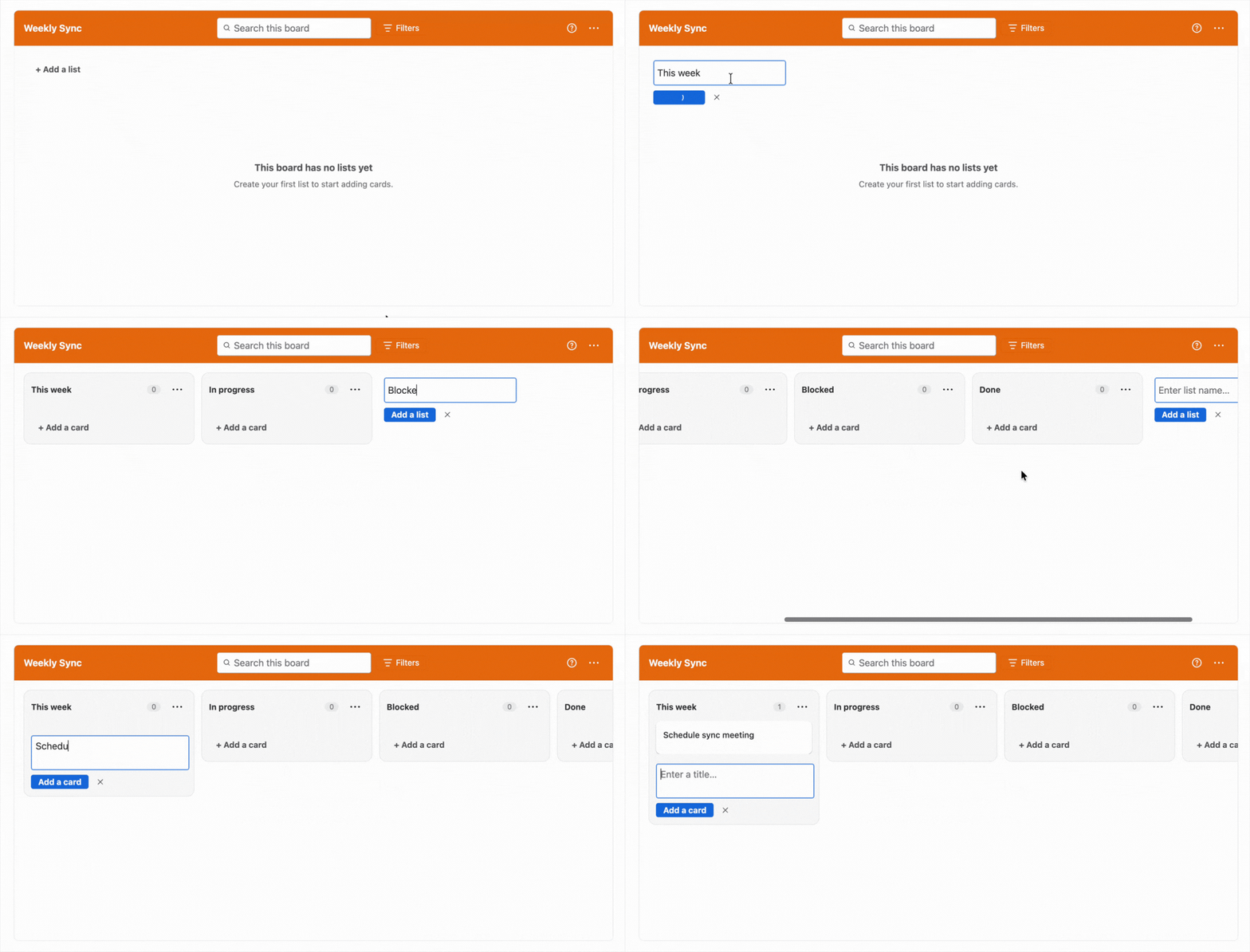
Step 2. Add your lists. Click + Add a list, type a name and press Enter. Name the lists after your real process. A content team might use Ideas, Planning, In progress and Launch. An approvals flow might use Submitted, In review and Approved.
Step 3. Add cards and move them. At the bottom of a list, click + Add a card, type a title and press Enter. Click the card to add a description, a due date and the people responsible, and use the comments to keep the conversation on the card.
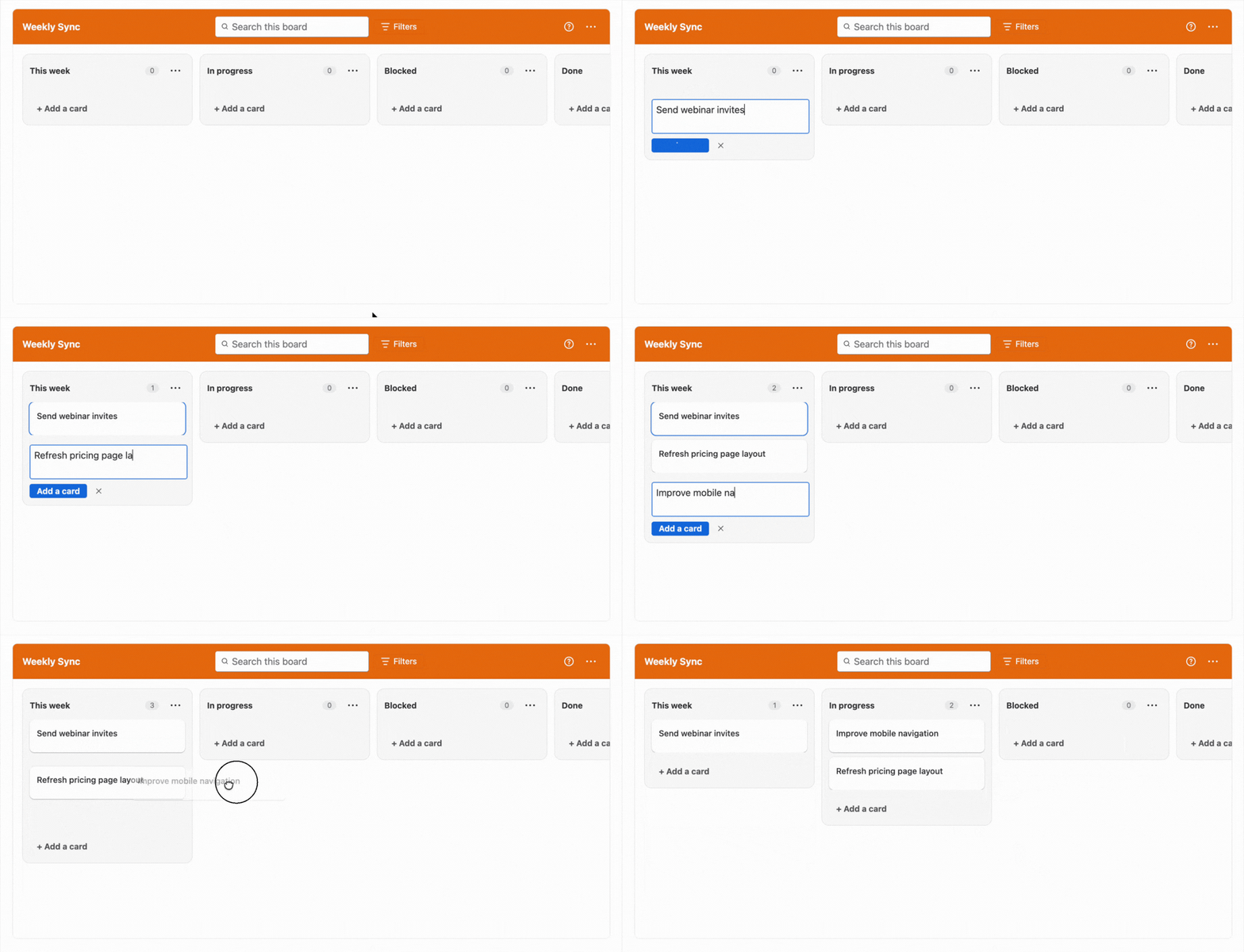
When work moves forward, drag the card to the next list.
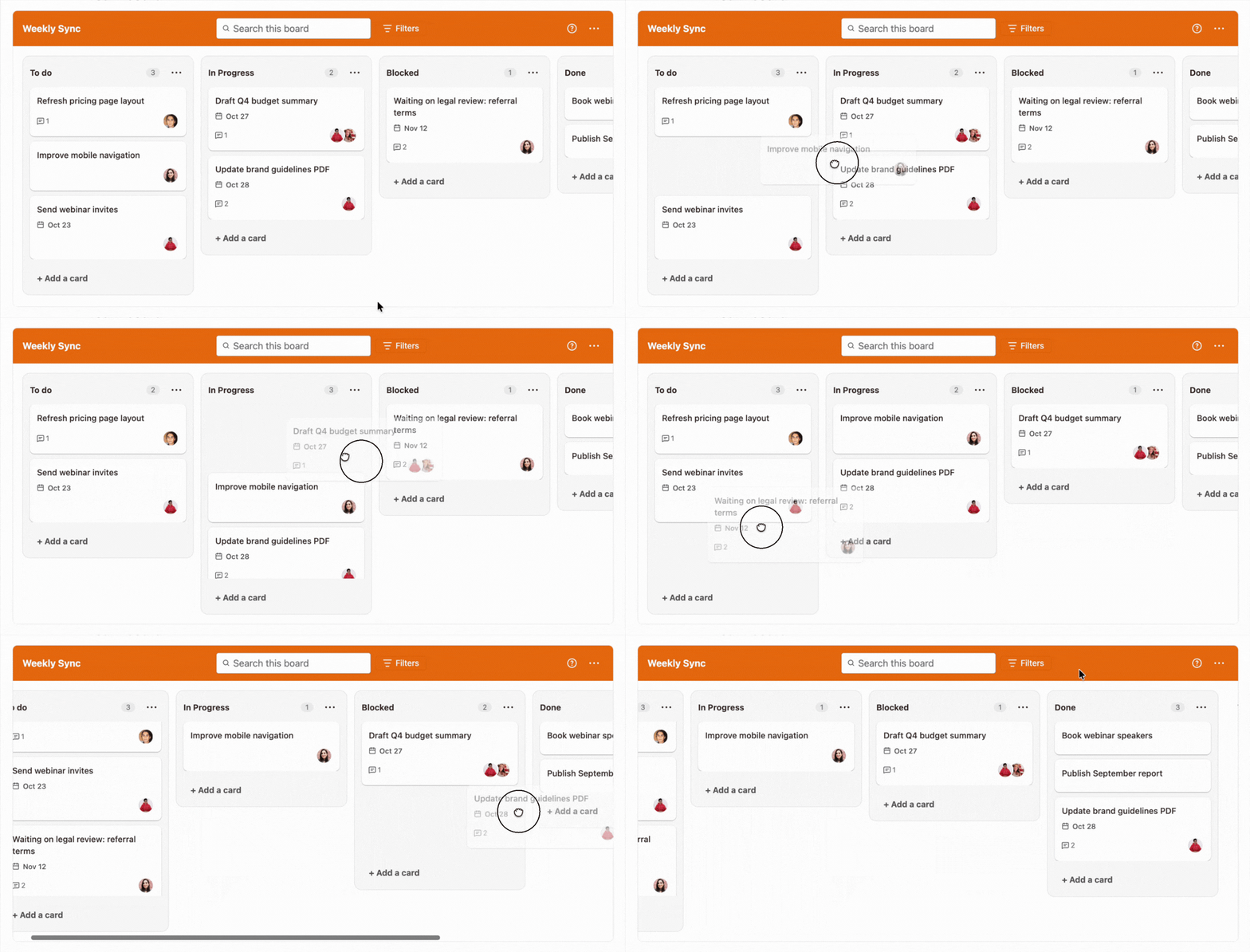
Where Teams Use a Task Board in Confluence
Anywhere work has stages and does not belong in Jira. These are the setups we expect to see most often:
- Campaign and content pipelines. Move each piece from idea to planning to in progress to launch, on the same page as the campaign brief.
- Approvals and reviews. Legal, finance and compliance requests get a visible stage instead of a thread of replies.
- Event and webinar planning. Keep the task board next to the event documentation, so the plan and the to-dos stay together.
- HR onboarding. Give each new hire a flow from offer accepted to first week done.
- Team to-do lists and short initiatives. Use a board as a checklist: one card per item and a Done list. When the initiative ends, archive the cards.
Task Boards vs Jira Boards, Native Confluence Tasks and Trello-Style Apps
Versus a Jira board. The idea is the same: lists, cards, work moving across. The difference is what you skip. There is no Jira admin to wait for, no workflow schema to configure and no extra Jira seat to add. Task Boards is made for teams outside engineering. If your engineers already run on Jira boards, keep them. This app is for everyone else.
Versus native Confluence tasks. Native tasks give you done or not done. Task Boards gives you lists that match your stages and cards that carry the details.
Versus Trello-style apps. If all you want is a flow inside Confluence, you do not need to adopt, sign in to and manage a separate tool. The board sits on the page where the work is already documented.
Why We Built It, and How to Try It Free
A customer asked us for a Cloud alternative to a board app that only ran on Data Center. We looked at what they were missing: a simple way to run a flow inside Confluence, without involving Jira. So we built it.
The free trial starts automatically when you install Task Boards for Confluence from the Atlassian Marketplace. You will find plans on the Pricing tab of the listing. If you are not a site admin, the install goes through a request that your Confluence site admin accepts.
The work your team does outside Jira deserves a flow that matches its stages too. Add a board to the page where that work is already documented, and see where everything stands.
Frequently Asked Questions
What are Task Boards for Confluence?
Task Boards for Confluence is a Cloud app that adds kanban boards to any Confluence page. Teams organize work in lists and cards, drag cards from one list to the next, and give each card a description, a due date, assignees and comments. The board stays on the page where the work is already documented.
Do I need Jira to use Task Boards for Confluence?
No. Task Boards works inside Confluence Cloud on its own. There is no Jira project, no Jira board and no Jira admin setup involved, so once the app is installed, any team that can edit a Confluence page can add a board with the macro and start moving cards. Teams that already run on Jira boards can keep them.
How is Task Boards different from Confluence tasks?
Native Confluence tasks are either complete or incomplete. Task Boards gives you lists and cards, so work can move through stages such as draft, review and approval. Each card carries a description, a due date, assignees and comments, which means the status and the conversation live together instead of in a checkbox.
What can teams use Task Boards for?
Teams use it for campaign and content pipelines, approvals and reviews, event and webinar planning, HR onboarding and team to-do lists. Any work that moves through stages and does not belong in a Jira project fits. For a simple checklist, create one card per item and keep a Done list.
Is there a free trial?
Yes. The free trial starts automatically when you install the app from the Atlassian Marketplace. You can see the available plans on the Pricing tab of the listing. You do not need Jira to try it, only Confluence Cloud. A Confluence site admin accepts the request to install the app.